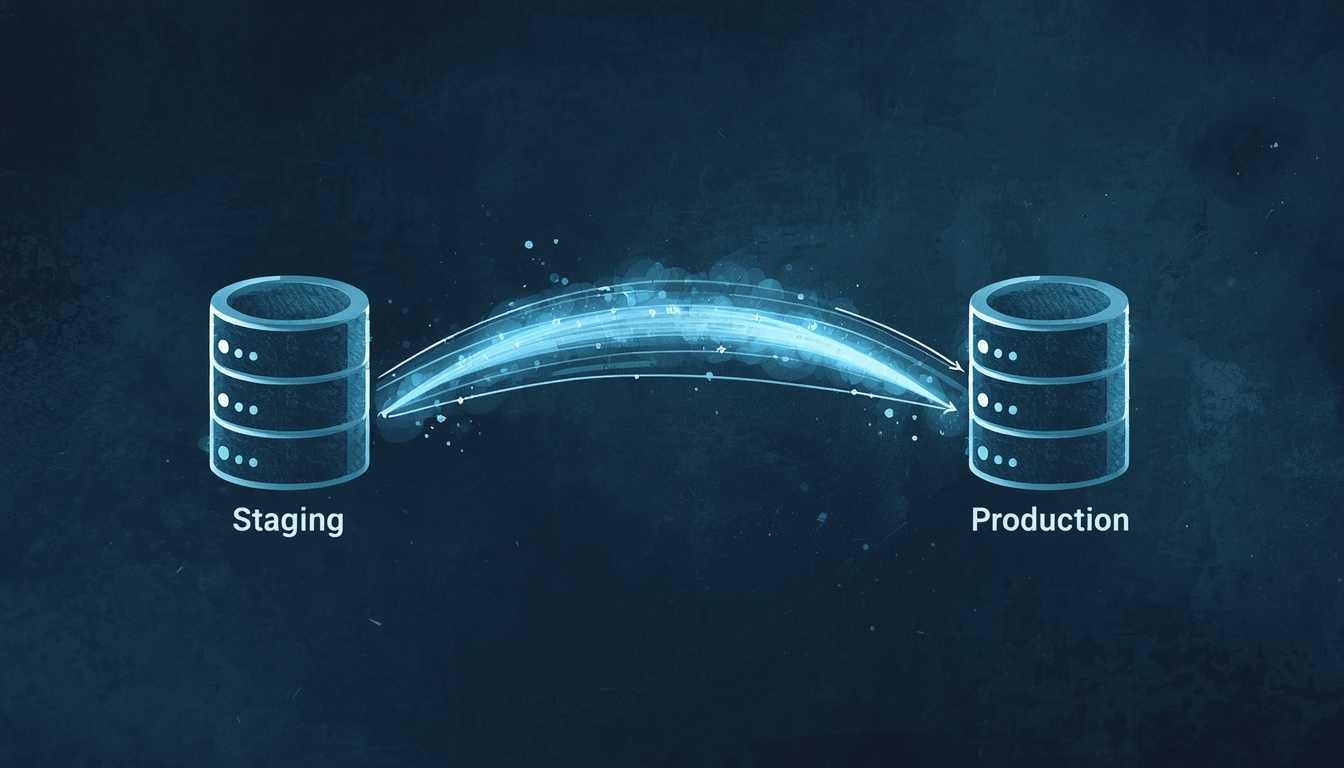
How to Push WordPress Changes From Staging to Production Safely
Push WordPress changes from staging to production safely with a workflow that protects live data, rewrites URLs correctly, and preserves media without downtime.
You built the changes on staging. You tested them. Clients signed off. Now you have to push them live — and if you’ve done this more than once on a real WordPress site, you already know the feeling in your stomach right before you click deploy.
For most WordPress sites, this is the part where things go sideways. URLs drift. Plugins misfire. Media disappears. Real form submissions get wiped out by an old export. And nine times out of ten, nobody on the team has a real process locked down for any of it.
I’ve cleaned up broken deploys for Houston clients, and I’ve been building around this problem because I got tired of watching the same mess repeat. Let’s get into what usually breaks when you push WordPress changes from staging to production, where the common workflows leak, and what a safer push actually looks like.
Why “Just Copy the Files” Doesn’t Work in WordPress
The first mistake almost everyone makes is treating WordPress like a static site. rsync the wp-content folder, refresh production, done — right?
Not even close. WordPress splits itself between the filesystem and the database, and the database is where all the interesting stuff lives:
- Every post, page, custom post type, and block-editor payload
- Every plugin setting stored in
wp_options - Menu structures, widget placements, customizer settings
- User accounts and roles
- Form entries, order records, comments
And here’s the part that quietly breaks migrations: WordPress hardcodes your site URL into serialized data all over the database. Block editor content. ACF field values. Widget config. Menu items. Some plugin settings. If you dump staging’s database into production without rewriting URLs, half your site will link to staging.yoursite.com and the block editor will refuse to load images.
It gets worse when WP_HOME and WP_SITEURL are hardcoded in wp-config.php on either environment — they’ll override whatever’s in wp_options, and now you’ve got two sources of truth quietly disagreeing. Multisite installs add another layer, since each site has its own URL entries and its own domain mapping.
A WordPress deploy only really works when the files and the database move together and still agree with each other. Miss either side, and things get weird fast.
The Manual Staging-to-Production Workflow (And Where It Breaks)
If you’re doing this by hand, the playbook usually looks something like this:
- Take a fresh backup of production (database +
wp-content/uploads) - Put production into maintenance mode
- Export staging’s database with WP-CLI:
wp db export staging.sql - Run wp search-replace to swap staging URLs for production URLs:
wp search-replace 'staging.example.com' 'example.com' --all-tables - Import the modified SQL into production:
wp db import staging.sql - Rsync
wp-content/uploadsand any new plugin/theme files over SFTP or SSH - Flush caches, deactivate maintenance mode, smoke-test
That’s the happy path. Here’s what actually breaks in the wild:
- URL drift — you missed a serialized field, and half the site still points at staging
- Overwritten form entries — production had 47 real contact submissions since you cloned to staging; the import just wiped them
- Overwritten orders and users — same story for WooCommerce orders, WPForms/Gravity Forms entries, comments, and anything in
wp_usersorwp_usermetathat changed on production between clones WP_HOME/WP_SITEURLconflicts — a hardcoded constant inwp-config.phpoverrides your search-replace, and the site quietly points at the wrong URL- Plugin activation state — a plugin you disabled on staging gets re-enabled on production, or vice versa, breaking a live integration
- Cache poisoning — Redis, Memcached, or a page cache still holds old objects that reference staging data
- Missing media — you rsync’d
uploadsbut forgot the offloaded S3 bucket, or missed a plugin’s separate upload directory
None of those failures is exotic. They’re the standard ways a WordPress site goes sideways at 4pm on a Friday. The manual workflow isn’t wrong — it just gives you almost no room to screw up.
Migration Plugins: What They Actually Do (And Don’t)
There’s a reason migration plugins keep selling: everybody runs into this mess eventually. Three of the usual suspects:
| Tool | What it’s good at | Where it falls short |
|---|---|---|
| WPvivid | Full-site backups and one-shot migrations between environments | Whole-site pushes only; overwrites live data (orders, form entries) |
| Duplicator | Packaging a site into a single archive for restore/clone | Same problem — it’s a full replacement, not a selective sync |
| WP Migrate DB Pro | Selective database push/pull with URL rewriting built in | Paid; database-focused (media/plugins are extra add-ons); still no selective content sync |
They all have the same bias: they’re strong at full migrations and pretty clumsy at selective, ongoing sync. If you’re moving a site once — from a dev host to a production host — any of these will get you there. If you’re pushing changes weekly from staging to production, you’ll spend most of your time working around the fact that these tools want to replace everything.
And that’s the part most teams actually care about. They don’t need to replace the whole site. They need to push this batch of changes — a new page, updated plugin config, a revised menu — without stomping on the real data production collected in the meantime.
What a Safe WordPress Staging-to-Production Sync Looks Like
Tool choice matters less than the safety rails. If your process is missing any of these six things, you’re always one sloppy deploy away from cleanup mode.
- Diff before push. You should be able to see exactly what will change on production before you press the button. What posts, what options, what plugin files. If you can’t see the diff, you’re deploying blind.
- Selective sync. You should be able to push only the content that changed on staging — a new blog post, an updated ACF field group, a swapped-out theme file — without dragging along last week’s staging test data.
- Automatic pre-push backup. Production gets a full backup automatically, right before the push, every single time. No exceptions, no “I’ll take one manually first.”
- One-click rollback. When something goes wrong (and eventually it will), you should be able to revert production to its pre-push state in seconds, not “let me find that .sql file.”
- Authenticated transport. Staging and production talk over an authenticated, signed channel. HMAC-signed requests are the minimum bar. Never expose an unauthenticated migration endpoint to the public internet.
- Media handled without full re-upload. Media library sync should transfer only new or changed files. Re-uploading 40GB of images every deploy isn’t a workflow — it’s a punishment.
None of that is flashy. It’s the boring safety stuff that keeps you from trashing good data on a live site, which is the whole reason staging exists in the first place.
A Pre-Deploy Checklist for Every WordPress Push
However you do the push — plugin, WP-CLI, or full manual — run this checklist every time. Put it in a doc, pin it in Slack, make it boring.
- Backup production first — database and uploads, verified before touching anything
- Freeze production writes — enable maintenance mode so orders/comments/form entries don’t come in mid-deploy
- Confirm what’s changing — content diff, plugin diff, theme diff — do not deploy blind
- Search-replace URLs on the SQL — check the counts; if it says 0 rows changed, something is wrong
- Skip protected tables — never overwrite
wp_users,wp_usermeta, orders, form entries, or comments unless you explicitly mean to - Import, then flush caches — object cache, page cache, and any CDN edge cache
- Smoke-test the critical paths — logged-out homepage, one product/service page, one form submission, admin login
- Only then, lift maintenance mode
If any step fails, roll back. The whole point of having a backup is to use it — don’t try to fix production live.
The Tool I’m Building: ez-page-sync
I’ve been stuck on this problem long enough to stop pretending the current tools cover it cleanly. They don’t. So I started building one.
ez-page-sync is a WordPress plugin I’m building to make staging-to-production pushes a one-click operation instead of a checklist. The goal is simple: show the diff before the push, sync only what changed, take the backup automatically, keep rollback one click away, sign the traffic between environments, and handle media incrementally instead of re-uploading the world.
It’s in active development — not something I’d put on a client site today — but I’m building it in the open. If staging-to-production pushes are part of your life and you want to follow along, kick the tires, or tell me where you think this should go, the project lives at ezpagesync.com.
WordPress Staging-to-Production FAQ
Can I push WordPress from staging to production without overwriting live orders or form entries?
Only if you use selective sync or explicitly exclude the tables that collect real-time data — WooCommerce orders, form plugin entries, comments, and often wp_users / wp_usermeta. A straight database import will happily wipe everything production has collected since you cloned it.
Do I need to run search-replace when moving WordPress from staging to live?
Yes. WordPress stores your site URL in serialized data across wp_options, post content, widgets, ACF fields, and plugin settings, so a plain SQL find/replace will corrupt those fields. Use wp search-replace (which handles serialized data correctly) or a plugin like WP Migrate DB Pro that does the same thing.
Should I enable maintenance mode before a WordPress deployment?
If production takes orders, comments, or form submissions, yes — even a 30-second window during import can drop real data. If it’s a purely marketing site with no writes, you can usually skip it, but you should still avoid deploying during peak traffic.
What’s the safest rollback plan for a failed WordPress push?
Restore the pre-push database and wp-content/uploads backup you took as step one, then flush the object cache, page cache, and any CDN edge cache together. If you skipped the backup, your only real option is manual recovery from your host’s snapshot — which is why the backup is step one, not step three.
Can I just copy the wp-content folder from staging to production?
No. WordPress content, settings, menus, and URLs all live in the database, not just the filesystem. Copying files alone will leave you with mismatched or missing content and probably a broken block editor.
Ship WordPress Changes Without Breaking Production
On paper, pushing WordPress changes from staging to production is a solved problem. In real life, it’s still easy to botch. The safe version comes down to a few rules you don’t skip:
- Assume the database is where the danger lives, not the filesystem
- Protect the customer-generated data on production above everything else
- Diff, backup, and rollback aren’t optional
- Use signed, authenticated transport if any part of your workflow crosses the public internet
If you’re running a WordPress site for a Houston business and this whole deploy routine already makes your shoulders tense up, fix it before the next launch turns into a cleanup job. Get in touch if you want a straight read on your setup and where it’s most likely to bite you — no pitch, just a clear look at the risk.
Want to see how ez-page-sync is approaching this? Follow the build at ezpagesync.com.
Related Reading

EZ Page Sync: WordPress Staging-to-Production Sync Plugin
See how EZ Page Sync pushes a single WordPress page from staging to production with HMAC-signed HTTPS, snapshots, rollback, and cache purging.
The Complete Guide to Website Maintenance Costs in 2026
What does it actually cost to maintain a website in 2026? We break down hosting, security, updates, and more—so you know what to budget.

10 Tips for Optimizing Your WordPress Website
Speed up your WordPress site, improve SEO rankings, and provide a better user experience with these proven optimization techniques.
Need Help With Your Website?
Professional Web Development Services in Houston
Whether you need WordPress development, custom React applications, or eCommerce solutions, we build websites that convert. Free consultation, no pressure.