Usage Sidebar: Track Claude Code and Copilot Limits on Mac
Track Claude Code, GitHub Copilot, Grok Build, and Antigravity usage limits in one Mac sidebar. Free, open source, and ready to download.
Usage Sidebar is a free, open-source Mac app that shows your Claude Code, GitHub Copilot, Grok Build, and Google Antigravity usage limits in one strip on the edge of your screen.
I run all four tools on the same Mac. Each one tracks its limits in a different place, on a different reset schedule, and checking them meant four separate trips. So I built one place to see every number.
Download Usage Sidebar 1.2.10 for macOS (free, 761 KB, Apple Silicon, macOS 14 or later). The source code is on GitHub under the MIT license.
What Does Usage Sidebar Do?
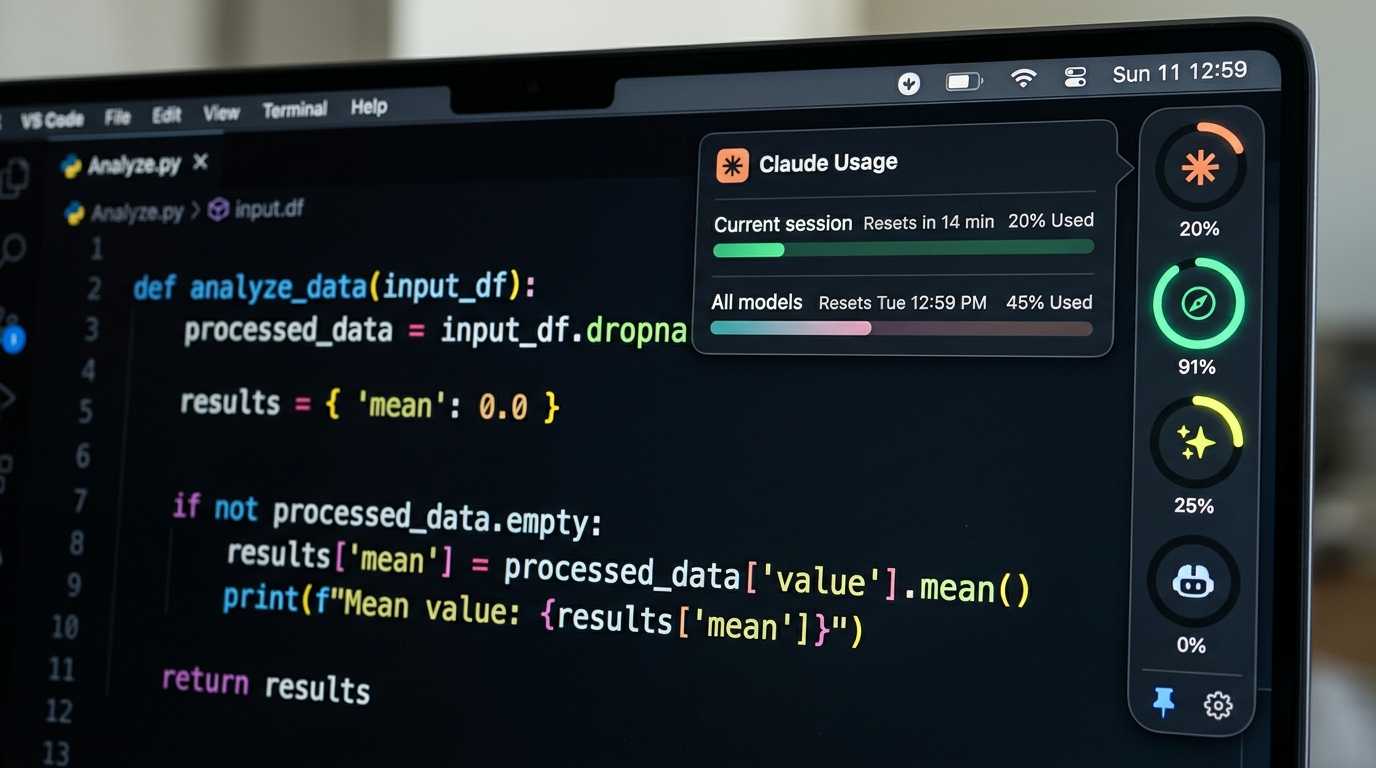
Usage Sidebar shows how much of each AI coding plan you’ve used and when that limit resets. It sits on the right edge of your display, above your other windows, with no Dock icon. Each tool gets a round badge with a progress ring and a percentage underneath.
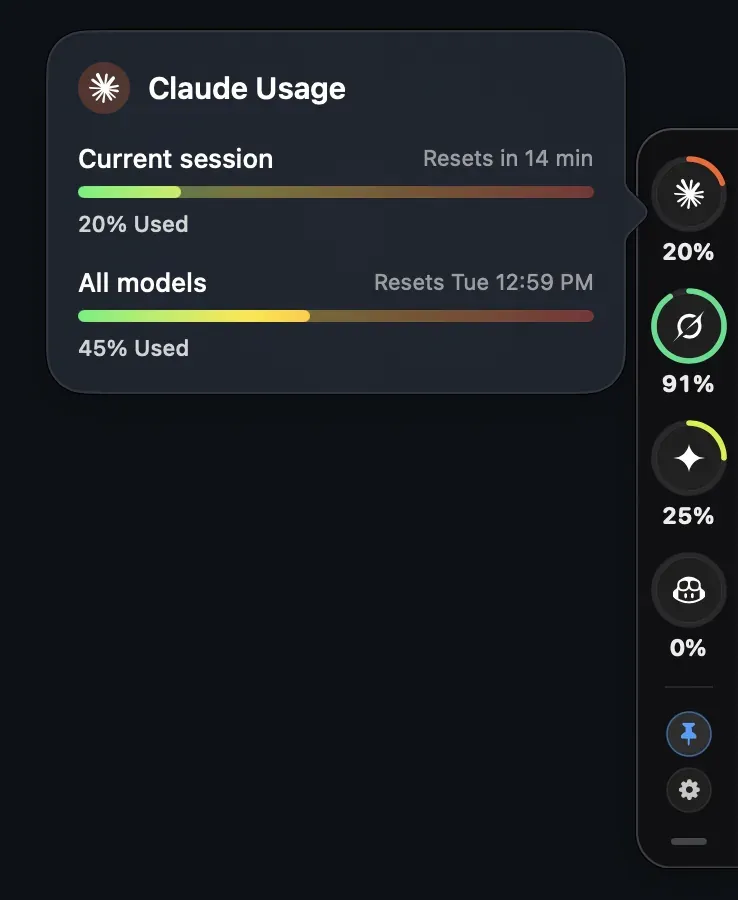
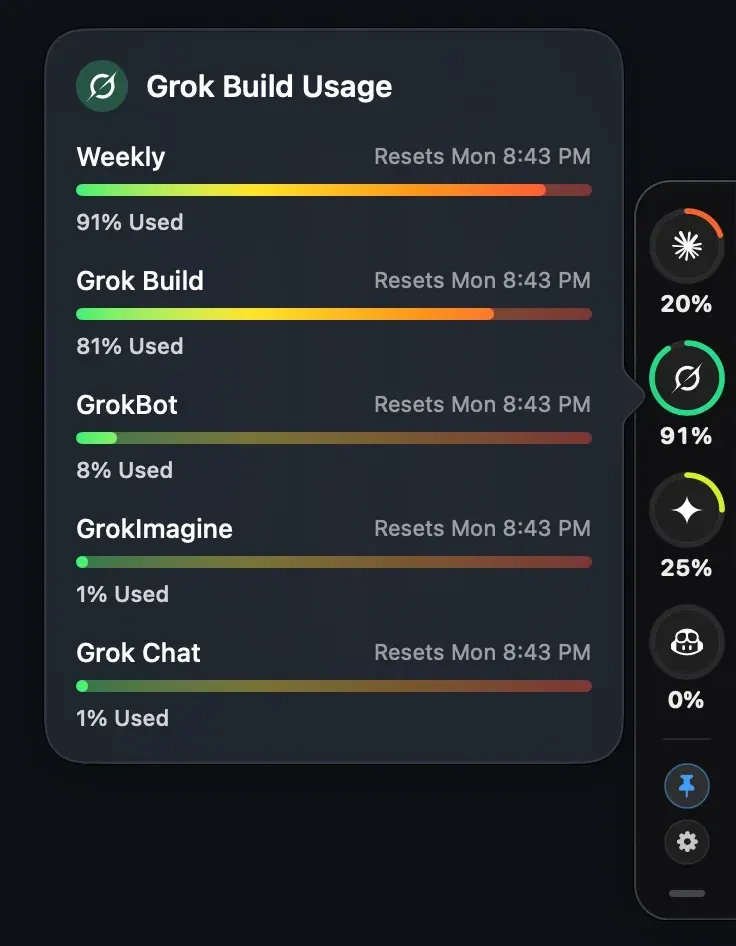
Hover a badge and a popover shows the full breakdown, with the time each limit resets. Click the badge to keep the popover open. The bars run from green through yellow and orange to red, and they only reach red at 100%.
The rest of the app stays out of your way:
- Auto-detection: The app hides any tool you haven’t signed in to. Sign in later and its badge appears within about a minute.
- Collapse or pin: Click the handle to shrink the sidebar to a slim edge tab, or pin it open.
- Start at login: Flip this on in Settings.
- Custom providers: Add your own HTTPS endpoint that returns usage as JSON, up to 10 providers in total.
How Does Usage Sidebar Get Your Usage Data?
You don’t enter any logins. Usage Sidebar reuses the sign-ins those tools already saved on your Mac, then calls the same usage endpoints the tools call for themselves. It checks each provider about once a minute.
- Claude Code: Reads the sign-in from your macOS Keychain. The ring shows your 5-hour session.
- Grok Build: Reads
~/.grok/auth.json. The ring shows weekly credit usage. - Google Antigravity: Reads your local Gemini credentials. The ring shows your weekly plan limit.
- GitHub Copilot: Reads your GitHub CLI sign-in. The ring shows premium requests, or chat and completions on free plans.
If a sign-in expires, the badge shows a dash. The app won’t guess a number or fill the gap with sample data.
Your tokens go to their own providers and nowhere else. The app has no analytics, no account, and no server of mine in the loop. You can confirm that in the source.
Two caveats before you install. This is an unofficial tool, and some of those endpoints are internal ones the vendors don’t document. If a vendor changes one, that provider’s badge can stop working until I ship a fix. The app also has no auto-update, so check this post or the GitHub repo for new versions.
How to Install Usage Sidebar on a Mac
- Download the zip and open it if your browser didn’t unpack it already.
- Drag
UsageSidebar.appinto your Applications folder. Start at login works more reliably from there. - Open the app. macOS will block it the first time (see below).
- Go to System Settings → Privacy & Security, scroll down, and click Open Anyway. On macOS 14 Sonoma, you can Control-click the app and choose Open instead.
The block happens because I signed the app ad hoc, without a paid Apple Developer ID, and Apple hasn’t notarized it. You’re making a judgment call about software from a stranger on the internet, so take it seriously. You can read the code and build it yourself in one command, or compare the zip’s checksum before you open it:
shasum -a 256 ~/Downloads/UsageSidebar-1.2.10.zipYou should see:
f9ba2e8ca78f0c5f179e8ba3006f1a037179361adff1c6249975151bca926634The Bottom Line
If you pay for more than one AI coding tool, Usage Sidebar saves you the tab-hopping and shows you which limit you’ll hit next. I wrote it for my own setup, and it’s free to use.
If you’re still working out which tools belong in that setup, my roundup of AI tools for web developers is a good next read. And if you want something custom built for your own business, get in touch.
Usage Sidebar FAQ
How do I check my Claude Code usage limit on a Mac?
Install Usage Sidebar and stay signed in to Claude Code. The Claude badge shows your 5-hour session percentage, and hovering it shows your weekly limit and the time each one resets. The app refreshes those numbers about once a minute.
Is Usage Sidebar free?
Yes. The app is free and open source under the MIT license.
Does Usage Sidebar work on Intel Macs?
The download runs on Apple Silicon only. If you have an Intel Mac on macOS 14 or later, the GitHub README shows how to build it from source.
Why does macOS block Usage Sidebar from opening?
macOS blocks downloaded apps that Apple hasn’t notarized. Usage Sidebar has an ad hoc signature, so you need to approve it once in Privacy & Security.
Does Usage Sidebar send my API tokens anywhere?
Each token goes only to the provider it belongs to. Custom provider keys live in the macOS Keychain, and the app sends them only to the URL you set.
Which AI tools does Usage Sidebar support?
Claude Code, Grok Build, Google Antigravity, and GitHub Copilot work out of the box. You can add other services that expose usage as JSON over HTTPS.
Related Reading

Hermes vs OpenClaw: Choosing the Right AI Agent Architecture
OpenClaw is a powerful open-source AI agent platform. Hermes is a specific deployment of it. Here's how to think about both — and the real gaps in between them you need to understand before building.

Agentic AI in Software Development: The New Way We Build
Discover how agentic AI is transforming software development. Learn about autonomous AI agents, the 'delegate, review, own' model, and how engineers are becoming orchestrators in 2026.

From Broken to Bulletproof: My AI Agent Optimization Journey
I built an AI-powered workflow for my web development business. Then everything broke. Here's how I fixed my OpenClaw AI agent setup and what I learned.
Professional Web Development Services in Houston
Whether you need WordPress development, custom React applications, or eCommerce solutions, I build websites that convert. Free consultation, no pressure.